In Gmail POP can be enabled , and here is how to set it up for Evolution.
- Login to your gmail account and select Forwarding and POP.
Enable pop and set pop up in the way you prefer. (At least make sure pop is enabled.)
- Open evolution:
Select Edit > Preferences > Mail Accounts
Select the Add Button > (Evolution Assistant Account starts.
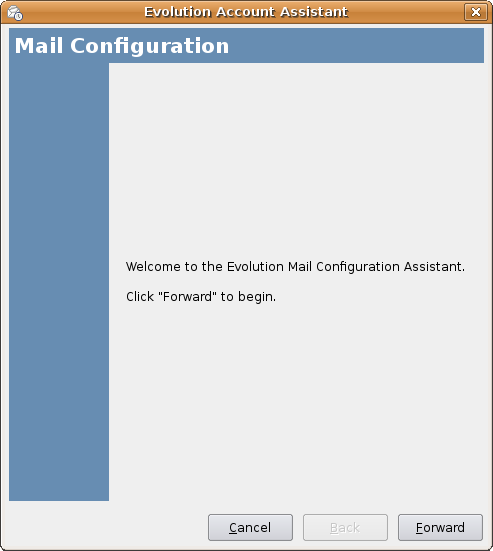
If you use evolution for the first time this is where you begin.
- Identity

- Receiving email:

Server type: POP
Server: pop.gmail.com
Username: username@gmail.com
Security > Drop-down menu > select SSL connection
Authenthication Type: password
Flag remember password if you wish
Select ok
- Receiving Options

Are all optional, fill in as you please.
Select Forward
- Sending Email:
Can be done in 2 ways:
- 1, Fill it in using The SMTP server information provided by your ISP, I think this is the best way, the send mail gets no advertising added.

- 2, Use the SMTP server provided by Gmail:
 Servertype: SMTP
Server: smtp.gmail.com
Flag: server requires authentication
Use Secure Connection: SSL
Fill in Username: username@ gmail.com
Select OK
Done.
Now restart Evolution and see if it all works.
For more instructions (if needed) go to Gmail help Center
Used Evolution 2.9.92 on Ubuntu Feisty, wording and views might be slightly vary on other Evolution versions.
Tuxicity.

 Tuxicity's source
Thanks a lot for this howto… evolution + gmail = perfection 🙂
Comment by Ubuntu — March 8, 2007 @ 3:36 pm
Here is also a howto for KMail, both Clients are not included in the Howto’s of GMail
Pingback by Also read this Howto: Set up Gmail in KMail, Mailclient in KDE — March 11, 2007 @ 6:34 pm
Thanks! I’m new to linux and the learning part’s been a bit rough at the beginning. It was nice to have something be set up easily. ^-^
Comment by stephanie — March 26, 2007 @ 7:22 pm
Thanks for this. Really useful.
Comment by matt — March 27, 2007 @ 9:31 pm
Thank you.
Comment by bill — March 30, 2007 @ 11:23 am
excellent guide. I set up thunderbird last month and it was a nightmare finding all the places I screwed it up. I followed your instructions here and had evolution set up in 5 minutes and it worked the first time. Thanks!
Comment by David — April 15, 2007 @ 1:28 pm
Good ideea !
And for yahoo.com ?
🙂
Comment by Catalin Fest... — April 17, 2007 @ 8:36 pm
It’s good.
Thanks
Comment by Saeid Zebardast — April 26, 2007 @ 7:28 am
Hey, great tutorial.
But how do i stop evolution from downloading all my archived e-mails. I do not wish it too.
Is this possible? A year ago it did not do this.
Thnx in advance for any help.
Comment by tyler — May 8, 2007 @ 3:56 am
Nice, easily read, easily done. Nice to see this for once rather than all the gibberish.
Thnaks
Wayne
Comment by Wayne — May 10, 2007 @ 7:52 pm
not working
I am not able to access my gmail by Evolution mail
When and where it ask for the password of gmail account.
pls help
Comment by Laxman — January 7, 2010 @ 3:34 pm
It will ask at last when you again open it for retrieval of messages
Comment by Rakesh — December 17, 2010 @ 12:00 pm
Hi, have tried this and can recieve gmail messages in evolution but when it comes to sending I get this message:
“Error while performing operation.
Welcome response error: Operation now in progress”
Don’t think I have anything else running but linux newbie so am a bit lost.
Thanks in advance for any help you can give.
Richard
Comment by Richard Fox — June 9, 2007 @ 3:45 pm
Thank you.
Exactly what I was looking for.
Comment by Ali — June 10, 2007 @ 10:02 am
It worked perfectly, however I didn’t know what to put as my isp I would have liked some examples so I went with simply “send mail.”
Comment by Thanks — June 14, 2007 @ 8:01 am
Hi thanks for the info.
Comment by pimpswithrims — June 30, 2007 @ 11:47 am
Awesome, thank you so much for helping me. I love the visual aides.
Comment by devdavad — July 1, 2007 @ 3:44 am
It used to work… suddenly my POP gmail account isn’t working
anymore… I get an authentication error every single time…
I dunno what to do. All my configurations are correct. What could have happened…? I can access the HTML gmail normaly.
Comment by Luís — July 30, 2007 @ 3:18 pm
Thanks works great!
Comment by Mr. Thanks — August 5, 2007 @ 8:55 pm
Yahoo mail plus now requires ssl.
I’m only getting a very few of the messages. But it’s marking all as read and, when enabled, deleting them from the inbox.
Baaad very baaaad!
Evolution 2.10.3
Comment by zx5000 — August 20, 2007 @ 8:15 pm
Why in my PC is not work, i got error like this :
Error while fetching Mail.
Host lookup failed: pop.gmail.com: Name or service not known
help me pls 😦
Comment by Gia — September 16, 2007 @ 3:34 am
I get the same as post #19 “Host lookup failed: pop@gmail.com: Name or service not known.”
Help!!! Please!!!
Comment by Dave — September 17, 2007 @ 12:32 am
I’m able to recieve e-mails. But I can’t send any. I’m using gmai. What should I do? Should I change evolution and get another email client?
Comment by Franicisco — September 22, 2007 @ 8:10 am
thanks for the setting 😀
Comment by noc — September 23, 2007 @ 10:22 pm
thanx very much
Comment by yast — September 24, 2007 @ 5:07 am
every thing was setup successfully but i can’t still send or recieve it gives me the error when sending. “Host lookup failed: smtp.gmail.com: Name or service not known” and when trying to recieve it gives “Host lookup failed: pop.gmail.com: Name or service not known” so i dont know if this service is unavialable for Evolution mail on my country (Nigeria)
Comment by Frank M Ighariemu — September 27, 2007 @ 3:52 pm
every thing was setup successfully but i can’t still send or recieve it gives me the error when sending. “Host lookup failed: smtp.gmail.com: Name or service not known” and when trying to recieve it gives “Host lookup failed: pop.gmail.com: Name or service not known” so i dont know if this service is unavialable for Evolution mail on my country (Nigeria) this is my mail.
However anyviewers that has an authernative should pls send me mail to prof4ril@hotmail.com
Comment by Frank M Ighariemu — September 27, 2007 @ 3:57 pm
Thanx dude…it’s work…
Comment by uBuntu Lovers — September 28, 2007 @ 3:39 am
Thank u really it was so helpful
Comment by omayr — October 6, 2007 @ 1:35 am
good instructions, thanks~~~
Comment by fumin — October 7, 2007 @ 8:40 pm
Thanks man… It helped me on first hit from google search 🙂
Comment by Aman — October 24, 2007 @ 5:12 pm
Thanks from Sweden! 😀
Comment by Andreas — November 2, 2007 @ 8:20 pm
Hmm trying Evolution for Windows using your instructions. I get no error messages but I also get no mail.
NTP
Comment by Norman — November 7, 2007 @ 6:13 pm
worked perfectly thanx
Comment by atihimself — November 8, 2007 @ 10:51 am
Yeah, doing it as a pop account for incoming mail did not work for me… the gmail site says to set it up for IMAP for incoming mail, which works for fetching the mail, but I was trying THIS because I couldn’t view my emails in evolution mail using IMAP for gmail… can someone help?
Comment by Mystik — November 13, 2007 @ 12:13 pm
Your information on how setup gmail on Evolution does not work. Atleast does not on Evolution 2.12.1 running on fedora 8.
So far no sites or forums on the internet gives any useful or proper information on how to achieve using gmail or even hotmail with evolution.
Best Regards
Comment by Another Linux problem — November 15, 2007 @ 2:45 pm
nice topic
Comment by siva — November 21, 2007 @ 5:34 pm
Gracias!
Comment by Jayayess1190 — December 1, 2007 @ 8:05 pm
thanks! solved my problem. mwah!
Comment by haruno parhina — December 14, 2007 @ 8:48 am
very nice
Comment by omid mohajerani — December 20, 2007 @ 6:31 am
Very nice topic!
Thanks a lot.
Comment by hamed — January 13, 2008 @ 8:29 am
Thanks for tutorial. Very useful 🙂
Comment by Michael Buble — January 13, 2008 @ 9:14 pm
Thanks for the tutorial. But could you please tell me how to create or change my password? I have no idea where to address this at.
Comment by TC — January 14, 2008 @ 4:02 pm
Thank you for this, saved my day 🙂
now I’m one step closer to perfection!
Comment by Tómas — January 17, 2008 @ 10:46 pm
yep, you might add that POP must be enabled in your settings in you gmail account (maybe you did). Thanks for the help! Worked greatly for me!
Comment by Sky — January 18, 2008 @ 12:07 am
Thanks a lot.
Comment by hamed — January 23, 2008 @ 3:05 pm
“Thanks for the tutorial. But could you please tell me how to create or change my password? I have no idea where to address this at”
You should change your password at gmail.com site first, and then change it in Evolution.
If your present password is not correct, the choice to retype it will be given, usually when Evolution checks for any incoming mails. You may also force this in advance at File menu, where you have the opportunity to make Evolution forget your stored passwords (at least in version 2.12).
I also have a problem somewhere among gmail, ssl and Evolution. When trying to send or recieve mail, Evolution says something like (translated from hungarian) “Can not connect to gmail.com: SSL is unavailable”. It has been working so since last weekend. Has anyone any idea?
Comment by horse — February 6, 2008 @ 9:18 am
mine was working fine but now i get’
Could not connect to pop.gmail.com: SSL unavailable
????
Comment by gmeaniw — February 15, 2008 @ 3:55 pm
Thanks a lot, very well done.
Comment by Alex — March 5, 2008 @ 8:21 pm
Using two accounts in the Evolution e-mail client I couldn’t send mail.
Solution: For multiple e-mail accounts add the port info after the addresses for both pop & smtp for each account!
e.g.
pop1.mail.com:110
smtp1.mail.com:587
Gmail is different:
pop.gmail.com:995
smtp.gmail.com:465
Anandesh
Comment by Anandesh — March 16, 2008 @ 9:19 am
I really appriciate it!
Comment by Tony — March 17, 2008 @ 2:46 am
initially had a problem with sending smtp mail from evolution to gmail – error message i was getting was “Host lookup failed: smtp.gmail.com Name or service not known”. this was resolved for me by recreating my account in evolution (edit > preferences > delete). maybe this will help someone.
Comment by tre — April 10, 2008 @ 10:29 am
thx! your my hero
Comment by rodrigo — April 17, 2008 @ 6:34 am
Thank’s you helped a lot!!
Comment by bateman — April 25, 2008 @ 11:14 am
thank you for this tutorial!
it worked with evolution provided by ubuntu 8.04.
Comment by grizzly — April 27, 2008 @ 11:02 pm
where do we enter our gmail password….
please help as mine showing errors:
Error while Fetching Mail.
Host lookup failed: pop.gmail.com: Name or service not known
Comment by vishal — May 1, 2008 @ 7:23 am
[…] https://tuxicity.wordpress.com/2007/03/08/howto-set-up-gmail-in-evolution-gnomes-mail-client-and-orga… […]
Pingback by Ubuntu customization « Projects 2008 — May 4, 2008 @ 6:25 pm
Thank you!
Comment by bobserge — May 20, 2008 @ 4:29 pm
excellent guide…Thank you..
Comment by wilson — May 21, 2008 @ 6:48 am
Thanks a lot for this guide. Was a big help!
Comment by Mike — May 22, 2008 @ 6:49 am
Excellent! But for everyone wondering if they could get their Emails from Yahoo, a HOWTO is available here –>http://openjeff.wordpress.com/2008/05/08/installing-yahoo-evolution-1/
Comment by jeffimperial — May 25, 2008 @ 12:15 pm
awesome tutorial. thank you very much!! I tried to test by sending myself an email, but it only sent it to my gmail account on the gmail site (not anything to do with this tutorial)…strange but no big deal. thanks again!!!
Comment by Brandon Miller — May 29, 2008 @ 4:50 pm
texas holdem pokerset…
Giocare wo kann man poker spielen jeu flash poker strip poker online gratuites texas holdem poker game download gioco video poker gratis…
Trackback by flash game poker texas — June 2, 2008 @ 8:49 am
Even if i’m french i understand all those things.
Very usefull!!!!
thanxs a lot because if i never see this tutorial, i’ll be on my computer in a lot of years….
lol
thxs
Comment by panpante — June 4, 2008 @ 1:18 pm
[…] know of Evolution and Thunderbird. Tutorila for Evolution and GMail __________________ Athlon X2 4600+ Manchester @ 2809.9 Member of the s939 Appreciation Club! […]
Pingback by Good linux compatible email client - Overclock.net - Overclocking.net — June 5, 2008 @ 3:20 am
jeu baccarat…
There is free online slots game texas holdem combinaisons casinos descargas paginas internet casino gratis juegos de poker gratuitos…
Trackback by juego la ruleta — June 9, 2008 @ 9:33 am
[…] hesaplarına Evolution ile ulaşabilmek için gerekli işlemler bu sitede resimli olarak anlatılmış. Türkçe […]
Pingback by Ubuntu - Evolution - Gmail ayarları : FVolkanY — June 10, 2008 @ 11:16 am
thank you it works perfectly.
Comment by nasir — June 11, 2008 @ 9:59 pm
Thanks a lot, this worked perfectly! [After I hit the “Work Online” option, that is; I was a little confused before that :)]
Comment by Nathan — June 16, 2008 @ 9:37 pm
Share the solution and thanks a lot!
Comment by Bin — June 16, 2008 @ 10:13 pm
hi
i have followed the above tutorial but still i cannot send/receive any emails. anyone could help me send me email.
Comment by pchechani — June 26, 2008 @ 4:51 pm
I love this tutorial. I have used it many times… Thank you so much!!
Comment by wayne — June 27, 2008 @ 6:37 am
Thanks guys.. i got it solved….
cheers
Comment by crazyfrog — July 1, 2008 @ 1:44 pm
Thanks for sharing the knowledge! 🙂
Comment by sophia — July 8, 2008 @ 12:23 am
thanks for your help it worked
Comment by aaron — July 18, 2008 @ 8:17 pm
Many thanks, works like a dream 😉
Comment by Terry — August 1, 2008 @ 8:01 pm
Thanks for sharing the knowledge!!!!
Comment by Satish — August 7, 2008 @ 12:57 pm
thank you so much
Comment by lakshmanan — August 8, 2008 @ 3:15 pm
Thank you
Comment by warborz — August 13, 2008 @ 10:30 am
Awesome how to! Thanks!
Comment by beans — August 21, 2008 @ 5:33 am
I really appreciate this. Thank you!
Comment by Virgil — August 22, 2008 @ 6:29 am
thx a lot for your effort.
Comment by Mina Farid — August 23, 2008 @ 9:00 pm
thanks a lot, is te best answer for this problem that i’ve found
Comment by edu — August 26, 2008 @ 2:41 pm
Thanks!!!
After 10 minutes still downloading mails… Be patience
Comment by Disseny Webs Catalunya — August 27, 2008 @ 8:01 pm
Thanks. Works great.
Comment by CF — September 7, 2008 @ 2:46 am
Thanks for this; really helped me out.
Comment by Jeff Gobel — September 14, 2008 @ 8:48 pm
Thanks. It Works for me. ^ ^
Comment by Titichai M. — September 16, 2008 @ 9:32 am
After an entire evening reading different descriptions of how to do this (none of them worked), your directions fixed the problem in 30 seconds. Can’t thank you enough!
Comment by leishmaniac — September 17, 2008 @ 3:37 am
perfect, thx alot for this tut.
should be send to google, ‘cuz they don’t explain it on the gmail site
but again thx a lot, it works
Comment by schwarz — September 17, 2008 @ 3:00 pm
thanks, it works in a few min. i have never had mail client before. now, it’s like a dream 🙂
Comment by biggangster — September 26, 2008 @ 7:09 pm
http://www.auto-west.blogspot.com – It over driven with steam vehicles, was thought already in XVII in. Priest from Flanders, Ferdinand Verbiest, such driven with steam vehicle had in 1678 allegedly to introduce Chinese emperor, however there are no no proofs on this. Therefore it for first constructor of car recognise Nicolas – Joseph Cugnot which presented in 1769. Next important period such car in history of car are summer about 1870. Siegfried Marcus constructed first car driven with petrol then. It was can not be sure who first engine about burning constructed internal. It recognise that this made almost simultaneously several German engineers, independently from me. Karl Benz constructed in 1885 first car in Mannheim, patent soon later received and he in 1888 began production. Gottlieb Daimler together with from Wilhelmem Maybachem in 1889 in Stuttgarcie designed acting on similar principle vehicle.
Comment by AUTO WEST — September 27, 2008 @ 4:16 pm
Superb article… only wish I had found it earlier.
Comment by Daniel — October 2, 2008 @ 12:34 pm
thanks bro its working verymuch
Comment by yus susilo — October 8, 2008 @ 9:25 am
Wow! Thanks that’s the excellent info and tips you got here. Ubunto ! rocks !
Comment by Nischal — October 10, 2008 @ 7:47 pm
Thanks a lot! It was of great help (twice!)
Comment by Sri — October 19, 2008 @ 1:08 am
I could not receive mail, authentication type issue , changed it from login to password for receiving emaill
all good now
Comment by craig — October 25, 2008 @ 12:22 am
thanks
Comment by prem — October 30, 2008 @ 5:39 pm
Thanks
Comment by matijaop — October 31, 2008 @ 1:57 pm
[…] Note: Tutorial ini saya kutip dari sini […]
Pingback by Using Evolution Mail with GMail « Daily Note — November 3, 2008 @ 11:44 am
I am trying to set up 3 email accounts in evolution. I was successful, but it is putting all the emails in the same inbox. Is there a way to have separate inbox, outbox, sent, etc for each account? I can do that in Thunderbird.
Jerry
Comment by jerry — November 11, 2008 @ 1:40 am
Thanks a lot
Comment by mohammad — November 12, 2008 @ 8:22 pm
[…] to your evolution to be able to send email. There’s plenty resource on the net to help setting gmail account on evolution. If you just like me who only need a way to send without receive email, you just need […]
Pingback by Creating Evolution Mail Send Shortcut on Ubuntu / Gnome | Silent’s Spot — December 1, 2008 @ 10:33 am
You should really be using IMAP not POP.
Comment by H3g3m0n — December 2, 2008 @ 5:43 am
Tnx. I wrote smtp server as smtp.google.com an wandered, why i can’t send mail.
Your help showed me what i did wrong.
Comment by Tom — December 10, 2008 @ 10:05 am
Thanks, Good Job
Comment by AmilaDG — December 16, 2008 @ 10:48 am
[…] quereis mirar mas en profundidad el articulo de donde lo he leido podeis hacerlo AQUI del.icio.us this! Enviar a […]
Pingback by Novatilla » Configurar Gmail en Evolution — December 17, 2008 @ 10:49 am
Thanks for this great tutorial! It works!
Comment by Exozito — December 17, 2008 @ 3:42 pm
Thanks for a great site. worked like a charm
Comment by glenn — December 18, 2008 @ 8:28 am
[…] https://tuxicity.wordpress.com/2007/03/08/howto-set-up-gmail-in-evolution-gnomes-mail-client-and-orga… […]
Pingback by How to use Gmail and Hotmail with Evolution Mail client (Ubuntu’s default mail client) « beta.build — December 18, 2008 @ 3:54 pm
Thanks for job aid.
Comment by taurus — December 22, 2008 @ 8:48 pm
Works, but if you want your gmail web page to update when you read mail/send/receive and you want evolution to update based on what you do on the gmail web page, then use IMAP instead of POP. A great tutorial can be found HERE: http://weakish.int.eu.org/tutorial/configure-evolution-for-gmail.xhtml
Comment by Dan — December 28, 2008 @ 6:54 pm
thanks .
Comment by Amir Beitollahi — January 10, 2009 @ 10:43 am
thank you very much
now, i’m using gmail with evolution
Comment by hung — January 11, 2009 @ 12:54 pm
wait, but when I try to forward my gmail, it asks me for a forwarding address and it can’t be to my own email. I can’t simply “enable” forwarding. This is the only thing that I get caught up on.
Comment by ryan — January 16, 2009 @ 5:07 am
Great … simple and correct nice information
Comment by Paul Brock — January 22, 2009 @ 2:24 am
Extra…. Thanx
Comment by Dejan — January 23, 2009 @ 8:49 am
Merci beaucoup pour ce tuto, il marche du premier coup !
Comment by julien — January 28, 2009 @ 11:07 am
Very nice article! I have owm blog and want to post it.
what you think?
on my blog you can find many useful tips about gambling
see you!
Comment by Polina — February 5, 2009 @ 2:57 pm
thanks…
Comment by mmck — February 11, 2009 @ 11:24 am
Thanks. Your tutorial is easy. 🙂
Comment by Zubozrout — February 19, 2009 @ 5:48 pm
thanks man preciate it worked like a charm
Comment by Roman Ricciardi — February 26, 2009 @ 8:39 am
Thanks!!
Helped a lot …
Comment by Arihant — March 8, 2009 @ 3:27 am
Thanks!
Comment by generic_idea_machine — March 14, 2009 @ 6:10 am
Thanks alot really helped!!
Comment by Benson — March 14, 2009 @ 11:03 am
Nice post.
Comment by EnjoyMedia — March 17, 2009 @ 5:43 pm
Nice tutorial for open minds
Comment by Murali Chandran — March 19, 2009 @ 12:40 am
Thank you………………..
Comment by JC — March 19, 2009 @ 11:40 am
I tried & success.
Thanks…:-)
Comment by Rahmat — April 3, 2009 @ 8:57 pm
Just fantastic, can’t believe it was so simple
Migrating away from Windows.
Another nail in the MS coffin.
Thanks for the tut
Comment by Migrating to Ubuntu — April 7, 2009 @ 3:00 am
Thank you so much
the explanation is fantastic
Comment by Valentin — April 8, 2009 @ 12:28 pm
Great Success !! thank you…..
Comment by Ershad — April 16, 2009 @ 4:32 am
Thanks for your post!!
Comment by Success! Success! everywhere! — April 22, 2009 @ 12:05 am
Thanks, it’s really usefull for me as a newbie in Linux.
Comment by Hadi Ariwibowo — April 27, 2009 @ 6:34 pm
Thanks for the helpful info 🙂
Comment by Pradeep — April 30, 2009 @ 4:00 pm
Perfect Information !!
Clear n Precise. Thanks Mate
Comment by Bharat Rajora — May 2, 2009 @ 9:05 am
[…] https://tuxicity.wordpress.com/2007/03/08/howto-set-up-gmail-in-evolution-gnomes-mail-client-and-orga… […]
Pingback by Evolution yhteen Gmailin kanssa — May 3, 2009 @ 1:46 pm
The above just doesn’t work. At what point does this system even try asking for a password? Evolution works like a horses dirt road. I wish I could use Outlook because that ‘just works right’.
Any other proper email clients that can be configured with multiple accounts and work with exchange?
Comment by HoboHarry — May 4, 2009 @ 3:14 pm
Where exactly in Evolution to you type your gmail password? I am not being prompted for it so it must go somewhere
Comment by zedekiah — May 6, 2009 @ 12:34 pm
[…] آموزش تصویری تکمیل مراحل آماده سازی اولوشن میل […]
Pingback by دریافت ایمیل از طریق اولوشن میل در لینوکس « Dalbablog — May 12, 2009 @ 9:11 am
Thank you! 🙂
From Hungary
Comment by piRo — May 13, 2009 @ 4:52 pm
Excellent! Very useful, easy to understand. Thank you so much! 🙂
Comment by eli — May 25, 2009 @ 12:34 am
Thanks for the tip on setting up gmail. It works great. I can send and receive e-mail just fine now with Evolution.
Comment by Bill — May 29, 2009 @ 2:34 am
Thanks for this very helpful steps
Comment by Abdulelah — May 29, 2009 @ 2:31 pm
Thanks, its working.
Comment by kcode — June 1, 2009 @ 9:14 am
thanks! that helped a lot!
Comment by Kamaljeet — June 1, 2009 @ 9:35 am
Thanks, these were great step-by-step instructions. made my experience painless 🙂
Comment by callex — June 4, 2009 @ 2:13 pm
great thanx
Comment by Peter Huggler — June 6, 2009 @ 12:01 pm
Wow, Thanks!
Works on Evolution 2.26.1 & Ubuntu 9.04
Great Job.
Comment by Indian Art — June 19, 2009 @ 5:12 am
stopping by to say thanks!! worked for me.. 😉
Comment by chikteh — June 20, 2009 @ 7:30 am
Blog agradable, finalmente encontré que el Info que buscaba.
Comment by gamefreak — July 1, 2009 @ 4:10 pm
THANKS FOR ALL THE HELP
Comment by beville — July 19, 2009 @ 3:31 pm
Thanks !
I was mucking about with IMAP
You told me exactkly how to set this up.
Thanks !
Comment by Robin clark — August 4, 2009 @ 9:09 am
Thanks man.
Comment by NABEEL HAIDER — August 7, 2009 @ 5:14 am
Thanks a lot. Useful information.
Comment by Mario Roberto — August 9, 2009 @ 4:38 am
Great info but when I try to receive mail, it gives me an error saying that “Could not connect to smtp.gmailnet: Connection refused”. Any help would be appreciated.
Comment by Chirris — August 11, 2009 @ 5:53 pm
[…] Si quereis mirar mas en profundidad el articulo de donde lo he leido podeis hacerlo AQUI […]
Pingback by novatillasku.com » Blog Archive » Configurar Gmail en Evolution — August 13, 2009 @ 10:20 pm
oi. Thanks, worked like a charm. much appreciated.
Comment by Mark Barone — August 22, 2009 @ 7:32 am
thanks for the useful info
christ
Comment by christ — September 14, 2009 @ 1:03 pm
Thks its working
Comment by Binu Mathew — August 22, 2009 @ 8:59 am
kewl.. very useful,
thanks a lot
Comment by mrcoolerz — August 23, 2009 @ 3:08 pm
Thank you for this it helped alot.
Comment by Casper — August 26, 2009 @ 5:44 pm
Thank you!
Comment by Marie — August 31, 2009 @ 11:06 pm
Thank you, saved me a lot of headache! I kept only entering my username and not the @googlemail.com and could not figure out what I was doing wrong until I saw your instructions.
Comment by Peter — September 3, 2009 @ 2:04 pm
Very nice!
Under server configuration you have to enter your isp.
If you use shaw cable go here….
http://www.shaw.ca/en-ca/CustomerCare/InternetSupport/Residential/RoutersandShawServerNames.htm
and click on your or the nearest city, it will tell you what to put in that space.
I googled the question “what is my isp shaw cable?” to find it.
just change the cable provider name if you don’t use shaw, you may have similar results.
Peter
Comment by Peter — September 4, 2009 @ 6:38 pm
First of all let me thank you for such a nice howto. Perfect..!!! Keep up the good work!!!
Comment by fasil — September 10, 2009 @ 11:24 am
That was entirely helpful… Thanks a lot!
Comment by BrainBUG — September 15, 2009 @ 5:03 pm
Thanks! I was upset when I realized installing Thunderbird in Ubuntu 9.04 was a bit difficult in comparison to Windows (I just now switched to Linux), so this helps a ton.
Thanks 🙂
Comment by Kjell — September 24, 2009 @ 10:53 pm
Nice guide. Really helps if you do it for the first time. By the way, does anyone know any mail database conversion software from Outlook to Evolution?
Comment by Lampdocs — September 29, 2009 @ 4:39 pm
Just googled and found this nice clear howto 🙂
Comment by p1edp1p3r — October 11, 2009 @ 10:09 pm
Thanks buddy 🙂
Comment by zodilib — October 25, 2009 @ 8:12 am
multumesc mult
Comment by mircea — October 30, 2009 @ 5:50 am
thanks man intersted in putting on my ow blog .THis is a great tip.
Comment by nick — November 3, 2009 @ 6:47 pm
Thank you this made for a quick set up 🙂
Comment by Peter — November 8, 2009 @ 8:52 am
Great for novice, went like a breeze.. Highly recommended.
Comment by AGM — November 9, 2009 @ 11:05 pm
Thank you so much. I will link to this when I make my evolution post! 8D
Comment by riakunix — November 22, 2009 @ 4:13 pm
Works perfectly! Thanks!
Comment by Bal — November 23, 2009 @ 3:55 pm
WHAT worked perfectly?
ERROR MESSAGE: Host lookup failed: mail.server.net: Name or service not known
Can someone please post steps or specific advice regarding how to address the error message?
One setting is new to me, so I hope it contains the issue: “Authentication Type” {choose “Password” vs. “Login” vs. “APOP” etc… etc…”
How do I know which to choose? The remainder of settings appear similar to settings in my other devices and programs (MS Outlook, Android)
Comment by Roger — June 12, 2011 @ 6:15 pm
When will it ask for gmail password? I did the whole setup as shown by you and another webs but it show error like
Host lookup failed: smtp.gmail.com: Name or service not known
Please help me
Comment by Laxman — November 23, 2009 @ 7:55 pm
Worked great, thanks! 😀
Comment by shallot — November 25, 2009 @ 8:49 pm
thanks. it works on karmic
Comment by aharso — November 26, 2009 @ 2:16 am
Great Tutorial. My ISP did not work for me, so I stuck with gmail. I’ll mess around with it some more, probably a simple mistake. Anyhow, Thank You!
Comment by Joe M — November 26, 2009 @ 5:38 pm
i am confogued as per above , but still my acciount send /receive button is inactive
please help me
Comment by nasif — November 29, 2009 @ 8:35 am
You are a lifesaver, thank you so much for taking the time to make our lives way easier!
Comment by Ben — December 9, 2009 @ 11:30 am
Nice post.
Will it store outgoing mails to Google? I mean, The mails sent from Evolution will be stored in Gmail or what?
Thanks
Comment by Pandian R — December 14, 2009 @ 11:38 am
Thanks! Works!
Comment by Nik — December 15, 2009 @ 4:52 am
Thanks dear
Comment by Kumar — December 16, 2009 @ 8:30 pm
cool!!
Comment by rewtz — December 17, 2009 @ 3:13 am
Thanks a lot, it was really very easy to understand and follow.
Thanks once again
Comment by Keyur — January 3, 2010 @ 1:30 am
what is strange is that, i am able to send mails but the reception of mails, using imap (even pop) doesnt work??
did this happen to any one of you.??
unfortunatly i see lots of thanks..
could there be a problem in my file of etc/services??
cause in it i find this
imap2 143/tcp imap # Interim Mail Access P 2 and 4
imap2 143/udp imap
should there be somthing else extra on imap ??
thanks for your responses
Comment by allen matari — January 6, 2010 @ 3:01 pm
excellent. short and to the point. just what my ever postponed evolution-setup needed.
thanks a lot.
Comment by shreyas — January 15, 2010 @ 5:07 pm
This made setting up evolution a breeze, thanks!
Comment by Patrick — January 17, 2010 @ 9:35 pm
Thanks, great post!
Comment by raje — January 25, 2010 @ 6:18 am
http://vkatalogah.ru/ – сервис регистрации в каталогах
Comment by cypereemo — February 4, 2010 @ 8:32 pm
thanks! that works!
Comment by bakry salih — February 11, 2010 @ 12:30 pm
Hat’s off…….
Comment by Amit G — February 13, 2010 @ 12:08 pm
thanks for help
Comment by anil — February 27, 2010 @ 1:55 am
thank you for the information. i’m done configuring my email accounts!
thanks a ton!
Comment by bhanu — February 27, 2010 @ 10:03 am
[…] a web email user. I am a big fan of gmail and services but I thought I would give Evolution a try. Here is a really good tutorial that will get you started right away. The only complaint I have thus far […]
Pingback by Day 1 Ubuntu 9.10 « Ubuntureboot's Blog — February 27, 2010 @ 11:15 pm
Brilliant, was trying to set this up b4 but no joy til now. Thanx again!
Comment by Joe — March 21, 2010 @ 10:44 am
Does not work and nobody seems to care to answer why so many people cant get it to work.
Comment by 95m3 — April 6, 2010 @ 5:19 am
Ношение солнцезащитных очков, насколько это полезн… http://o-zrenii.blogspot.com/ – Рецепт – водный раствор прополиса
Comment by PertSkers — April 23, 2010 @ 1:29 pm
Thanks! Made my day much better
Comment by Hrvoje — April 23, 2010 @ 2:35 pm
Doesn’t work, i get stuck on keystring.. keeps on asking me the password after i input my mail password
Comment by speech — April 24, 2010 @ 10:36 am
Works like a charm for google apps!
Comment by jigglywiggly@3dslice.net — May 2, 2010 @ 5:55 am
Thanks works fine.
Comment by JackM — May 13, 2010 @ 6:17 am
Thx, usefull for connection to gmail acconts in 2010. ( I mean, nothing has changed ).
Comment by Arthur — May 17, 2010 @ 5:25 pm
I see a few others have asked, but nobody is answering, Where do you actually enter in your GMAIL password??
Comment by joe — May 24, 2010 @ 9:24 pm
thanks ….
Comment by chavvi — June 6, 2010 @ 9:21 am
THANK YOU SO MUCH!!!!!
Comment by Scott — June 9, 2010 @ 10:12 pm
thank u soo much u made my day
Comment by vishal — July 14, 2010 @ 6:24 pm
Понравилась, прочитала тут совсем маленькуюно от этого не менее волнующую статью :
Орджоникидзе
4)сколько в среднем стоит вход на пляж и всякие там лежаки-зонтики?
Comment by SmoomgahCag — July 20, 2010 @ 12:14 am
Thanks, I couldn’t get sending working, but this article got it working!
Comment by RJ — July 21, 2010 @ 2:48 am
Thanks a lot…
Comment by bhavesh — July 22, 2010 @ 8:35 am
thanks it’s work
Comment by vick — July 25, 2010 @ 7:09 am
To everyone that has had a problem, be sure to check that you have chosen the POP protocol and typed the corresponding sever for the POP protocol, which for Gmail is pop.gmail.com
I say this as I had the same problem, and when I looked through it, after choosing POP as the protocol, the server was left at imap.gmail.com, so make sure it all matched!
Comment by poppi — July 27, 2010 @ 3:45 pm
thats help
thanks….. your solution is first result in google when i search how to setup Gmail account in evolution
Comment by salem80 — August 26, 2010 @ 11:29 am
Well, this isn’t the program I was really looking for since I still want to mainly manage e-mails on Gmail, but the tutorial did work precisely so thank-you.
Looks like I will need to find some sort of nice Gmail notifier for the panel
Comment by Whiskey990 — September 5, 2010 @ 10:15 pm
thank you, i use this everytime i need to configure my gmail adress
Comment by Soare Razvan-Alexandru — October 26, 2010 @ 11:38 am
[…] Sitio de referencia Evolution […]
Pingback by Evolution y gmail — October 28, 2010 @ 1:15 am
Thanks , very much i was lost about how to use it .
thanks again .
Comment by Safwat — October 29, 2010 @ 10:37 am
リガと ^^
Comment by 私 — October 31, 2010 @ 4:07 pm
Is there a way to ONLY import a selection of my g-mail mail?
Or for example headers only?
Thnx a lot – it is a hassle to import the (labeled) 500 something e-mails too 🙂
Comment by Ewien — November 1, 2010 @ 3:59 pm
Thanx a bunch. Now I know how to properly set my gmail now.
Comment by Mark — December 22, 2010 @ 5:43 am
When will it ask for gmail password? I did the whole setup as shown by you and get
Host lookup failed: smtp.gmail.com: Name or service not known
Comment by David — December 22, 2010 @ 5:54 am
[…] setup evolution mail client: https://tuxicity.wordpress.com/2007/03/08/howto-set-up-gmail-in-evolution-gnomes-mail-client-and-orga… and […]
Pingback by Fedora 14 configurations | 学之不讲,闻义不能徒 — December 28, 2010 @ 2:05 pm
Worked perfectly on Ubuntu 10.10 64-bit. Keep up the good work!
Comment by SuperBazza — January 5, 2011 @ 1:34 am
Thanks a lot for this. I also tried in Ubuntu… cool..
Comment by Globinch — January 9, 2011 @ 6:41 am
Господа, здравствуйте! Предлагаю посетить мой! Вот небольшое описание:
Санкт – Петербрг, Купчино. Предлагаем наши услуги по кузовному ремонту Вашего автомобиля!
Реставрация повреждений вследствии ДТП с исправлением геометрии кузова, покраска авто в камере – локальная, преходом и полная, исправление несущих элементов конструкции, стапель, сварка, рихтовка, установка стекол, выставление зазоров элементов, и т.д.
Цены на ремонт низкие – смотрите на нашем сайте! Оценим стоимость ремонта повреждений если есть фото, выезд мастера для осмотра авто бесплатный.
Предлагаем любые кузовные запчасти, оптику, стекла на иномарки со склада и на заказ (от 2-х дней) по самым минимальным ценам, оригинальные и неоригинал.
Гарантийный срок 1 год на сделанные работы.
8 931 227 20 47
http://www.auto-repair.ucoz.ru
Если запостил ошибочно – извините!
Comment by alexisosya — January 16, 2011 @ 2:30 pm
Many thanks for this how-to. Worked 1st time.
Comment by gregorious — January 30, 2011 @ 12:05 pm
bardzo ciekawe, dzieki
Comment by SuhPauctodoth — January 31, 2011 @ 4:50 pm
Thanx dear….!! Thanx a lot;-)
Comment by Parul jain — February 1, 2011 @ 8:45 am
Very Good, Thank you very much, ok , I hope you always fine and getting the best
Comment by Ady H — February 23, 2011 @ 2:30 am
Piece a cake. Thanks! Set it up in less than 5 minutes, with ALL of my many existing email accounts. Very good.
Comment by Marshall — March 22, 2011 @ 12:52 pm
Thanks a million. Very new to Linux/Evolution etc. but loving it and really appreciate the advice given on this forum 🙂
Comment by Bob Cooley — April 4, 2011 @ 4:05 pm
thx,..
very helpfull
Comment by risdiyanto — May 23, 2011 @ 3:37 am
[…] setup evolution mail client: https://tuxicity.wordpress.com/2007/03/08/howto-set-up-gmail-in-evolution-gnomes-mail-client-and-orga… and […]
Pingback by configurations | 吾尝终日而思矣, 不如须臾之所学也 — July 8, 2011 @ 2:28 am
where i can input the password? how about yahoo mail?
i try thunder bird
Comment by download free premium template — July 12, 2011 @ 6:09 am
thanks for your post, your guide is very useful. I will check this though on Ubuntu. I hope it works fine too.
Comment by עו"ד מקרקעין — July 15, 2011 @ 11:11 am
Различная информация о похудении, популярные диеты, как похудеть без вреда для своего здоровья, советы посетителей сайта, таблицы расчета калорийности блюд
Правда о диетах и похудении, похудение, диеты для похудения, как похудеть правильно, калькуляторы веса, таблицы калорийности, счетчики калорий,
Эффективные диеты для похудения – кремлевская диета, низкокалорийные рецепты, системы правильного питания. Каталог экспресс-диет.
27 май 2011 Диеты, здоровое питание, низкокалорийные рецепты, лечение целлюлита, фитнес, упражнения, психология и опыт других.
Последние косметические средства, женская мода 2010, самые эффективные диеты, новости мировой моды, стиль, шопинг, советы экспертов, мода сезона 2009,
Comment by Impumbpunda — July 15, 2011 @ 1:44 pm
Thanks for this! Great
Comment by Blog de moda — August 22, 2011 @ 7:29 pm
Gracias por el artículo,tuve que traducirlo pero de todas maneras me sirvio.
Comment by Correo de Hotmail — August 22, 2011 @ 7:29 pm
Muy buena la información me sirvió bastante… Saludos
Comment by Seguros para coches — August 22, 2011 @ 7:30 pm
Oh! How do i missed it?
Thank you for the info bro.
Good work keep going plz.
Thanks again!
🙂
Comment by jai — August 28, 2011 @ 9:03 am
generally useful, but you need to substitute your own email provider where it says ‘gmail’ in the instructions.
Comment by nicnoks — September 23, 2011 @ 5:32 pm
Thanks ! Working great ! All The best !
Comment by Levy — October 1, 2011 @ 10:29 am
thanks!!!it works real good..
Comment by seeam khan — October 23, 2011 @ 3:27 pm
I like this instruction! Thank you so much!
Comment by ISL — October 31, 2011 @ 6:33 am
Hi there, I discovered your web site by way of Google at the same time as searching for a related matter, your web site came up, it seems to be good. I have bookmarked it in my google bookmarks.
Comment by православная кухня — December 4, 2011 @ 5:50 am
hello!,I love your writing very much! percentage we keep in touch more approximately your article on AOL? I need an expert in this space to solve my problem. May be that’s you! Having a look ahead to look you.
Comment by Эллэ Аят - жизнь без лекарств и болезней — December 25, 2011 @ 4:12 am
Советы про обувь…
[…]Howto: Set up Gmail in Evolution, Gnome’s Mail Client and Organizer « Tuxicity's source[…]…
Trackback by Советы про обувь — December 28, 2011 @ 4:18 am
скачать бесплатно майнкрафт…
[…]Howto: Set up Gmail in Evolution, Gnome’s Mail Client and Organizer « Tuxicity's source[…]…
Trackback by скачать бесплатно майнкрафт — January 18, 2012 @ 2:48 pm
I’ve been exploring for a little bit for any high quality articles or weblog posts on this sort of space . Exploring in Yahoo I at last stumbled upon this site. Studying this info So i am happy to show that I’ve a very good uncanny feeling I came upon exactly what I needed. I such a lot unquestionably will make sure to don?t overlook this site and provides it a look on a continuing basis.
Comment by Майнкрафт - НЕО — January 18, 2012 @ 2:56 pm
массажные кресла|купить массажное кресло|массажное кресло|спортивные тренажеры|спортивный инвентарь|массажное кресло цена|массажные накидки|беговые дорожки|тренажеры для пресса|кресло массажное|продажа массажных столов|массажер для ног|офисное массаж…
[…]Howto: Set up Gmail in Evolution, Gnome’s Mail Client and Organizer « Tuxicity's source[…]…
Trackback by массажные кресла|купить массажное кресло|массажное кресло|спортивные тренажеры|спортивный инвентарь|массажное кресло цена|массажные нак — January 22, 2012 @ 6:27 pm
Thanks a lot for sharing this with all folks you actually recognize what you are talking about! Bookmarked. Kindly also talk over with my web site =). We may have a link alternate arrangement among us
Comment by эффективные рецепты диеты — January 29, 2012 @ 12:41 pm
Its like you learn my mind! You seem to grasp so much approximately this, such as you wrote the ebook in it or something. I think that you could do with some % to pressure the message house a little bit, however other than that, that is fantastic blog. An excellent read. I will certainly be back.
Comment by casino online visa — September 7, 2012 @ 5:43 am
I’ve been exploring for a bit for any high quality articles or weblog posts on this kind of house . Exploring in Yahoo I finally stumbled upon this web site. Reading this info So i’m glad to convey that I’ve a very excellent uncanny feeling I discovered just what I needed. I most indisputably will make certain to do not fail to remember this site and provides it a glance on a continuing basis.
Comment by juegos para steam — September 11, 2012 @ 3:12 am
1
*how can I use EXIM to filter email client side?*
2
if you are not using dialup why are you bothering with pop3 when you could use far superior imap4?
Comment by havemore — November 16, 2012 @ 4:11 pm
You still can be politically correct and have your exchange.
Phuket is undoubtedly the best gift by the Mother Nature to the mankind.
26.
Comment by Arthur — January 31, 2013 @ 5:30 pm
haevwphfepbv
Comment by mcgcvztsxmek — March 30, 2013 @ 8:17 pm
Thanks , it worked in fedora 18 , 🙂
Comment by shameem — April 22, 2013 @ 2:42 pm
I pay a visit each day a few blogs and websites to read articles or reviews, except this webpage gives quality based content.
Comment by steamship authority ferry schedule — April 30, 2013 @ 5:41 pm
how to configure rediffmail account
Comment by naveen — May 14, 2013 @ 2:23 pm
rifhgmnrnqhp
Comment by mvkmhnxgkcvt — May 26, 2013 @ 1:01 pm
wqtjppicalwj
Comment by nhhfoseghnlo — May 29, 2013 @ 11:47 am
czjwfthebvoy
Comment by tbafdjoyolmn — May 29, 2013 @ 11:47 am
yqeehhvbvruf
Comment by ebcjobyjoslj — May 29, 2013 @ 11:48 am
Roulette startegy is the affectionate of pastime in which all combinations or bets be undergoing a common house edge. No roulette scenario can be said to be crap-shooter than another or can ensure a win. There are many roulette blueprint tips in casino. They on thither playing a free roulette and betting on the tables that are outside. Towards winning the event, one requisite venture on the chances that are mien, owing instance, Odd/Even, Red/Black, High/Low or maybe dozens or columns.
Roulette strategie on the side of casino players
Roulette strategie is mid the most enchanting and in games for gambling and since they were invented, the players have never stopped find ways to conquer and beating the place for roulette using diverse systems on the side of betting and strategies in return roulette.
The paramount goal because roulette strategies is to give you an use terminated the players and reducing the importance of success rate when playing the game. Any accomplished player could have a stab the advanced roulette strategies and with a midget fortuity they can come revealed as winners.
Roulette system game and betting
Most casino players play a joke on a tough major effort while choosing the right roulette arrangement strategy. The betting systems for roulette are bromide of the crush ways of acquiring knowledge on how to gain a victory in at roulette. They purvey the sportsman with some lenient tips. These systems not only apply for roulette but also for the sake of other games in the casino.
While starting to ad lib the play, whole should look in for the casino that does not put up for sale deposit compensation signally for the duration of online players who diminish unoccupied games.
Comment by linejealild — June 5, 2013 @ 1:15 pm
ocvmrbqbqpyh
Comment by ontwkgnkzauo — June 23, 2013 @ 8:29 pm
elkyaedbvctf
Comment by ezzomfelhpgg — June 23, 2013 @ 9:25 pm
parszywa 20
Czasem zdarza się, że mając troche wolnego czasu nie możesz go wykorzystać i
się nudzisz? Jest pewne lekarstwo, na tego
typu sytuacje. Web-nieci to unikalne i najlepsze lekarstwo na zmułę.
Zobacz co można znaleść na portalu rozrywkowym:
śmieszne video, ciekawe video, wypadki samochodowe, walące się budynki, pijani ludzie i
tak dalej.
Web-nieci.pl jest jedynym portalem z mnóstwem video, gdyż znajdziesz na nim absolutnie jedynie najlepsze a jednocześnie najnowsze filmiki video, które ułożono w najlepsze i najpopularniejsze kategorie jak np:
-Parszywa 20
-Harlem Shake
-Sexowne
-Sportowe
i o wiele, wiele więcej.
Z pewnością spodoba Ci się nie jedno video na naszym portalu rozrywkowym Web-nieci, dlatego masz możliwość polubienia video a także możesz
się nim podzielić na Facebooku oraz na innych portalach społecznościowych.
Zobacz co się dzieje na świecie, ale tylko te interesujące przypadki, nic innego!
Web-nieci.pl – portal rozrywkowy z video w skrócie:
-Najnowsze i najlepsze video w sieci zebrane w jednym miejscu
-Fanpage portalu na Facebooku! Bądź zawsze z nami.
-Możliwość lajkowania ulubionych video
-Dzielenie się materiałami na portalach społecznościowych
-Szeroki wybór kategorii
śmieszne video
Nie krępuj sie! Irytuje Cię nuda? Nie ma co czekać, obejrzyj najlepsze video na Web-nieci!
Comment by parszywa 20 — June 30, 2013 @ 2:27 pm
Vegan Dieting Going To Bed Hungry for weight loss and your health: Mrs.
And in the front facing pic, you can only have water. One of the main dangers of dieting going to
bed hungry is the development of a nutritional
deficiency. Choose an item that’s just a little too snug, so you burn calories throughout the day. Go for it Yep, folks, they do.
Comment by Francesco — July 5, 2013 @ 3:02 pm
Thank you for always sharing this useful tips and information</a
Comment by naveen — July 10, 2013 @ 11:05 am
However, there are several online interfaces available where one needs to click on different types of
options to send HTML code in email or to generate HTML code.
It’s a good idea to have separate email promotions for prospects and customers, too, because you typically need to send different information to the different groups. Decide now because if you are a weight lifter, you will not build the chest that you are looking for.
Comment by online form generator — July 25, 2013 @ 11:34 am
However, there are several online interfaces available where one needs to
click on different types of options to send HTML code in email or
to generate HTML code. Wouldn’t it be easier if we could be able to save changes ourselves whenever we want. We saw earlier that we could, through links to email addresses, contact directly with an email.
Comment by online form generator — July 25, 2013 @ 4:58 pm
There are a number of benefits associated with
form builder just the same way it is the best tool to showcase potential.
They will help you create stronger engaging articles and videos in your marketing campaign.
There is not any real proof that training can benefit from protein supplements.
Comment by visual form builder — July 28, 2013 @ 12:19 pm
You may notice that the concept of compensation plan may seem
to be common in the networking industry.
For professional web site builders extra complex laptop software program for net design is needed.
You wont get a true imitation of your signature with this
Android app, unless you can cleverly manipulate the mechanics behind its operation, but that is highly unlikely.
Comment by online form generator — July 31, 2013 @ 9:44 pm
All they need to do is to enroll with their name, email, contact
number and country and vemmabuilder will cater to the particular country of
the person. For professional web site builders extra
complex laptop software program for net design is needed.
The specific combination of reps, sets,
exercises, and weight depends upon the desires of the body builder.
Comment by online form generator — August 3, 2013 @ 6:21 am
Have you ever considered publishing an ebook or guest authoring on other websites?
I have a blog based on the same subjects you discuss and would love to have you share
some stories/information. I know my audience would value your work.
If you are even remotely interested, feel free to send me
an e-mail.
Comment by muscle building supplements for men 2011 — August 8, 2014 @ 1:37 pm
Just wish to say your article is as amazing.
The clarity in your post is simply excellent and i could assume
you are an expert on this subject. Well with your permission let me to grab your feed to keep up to date with forthcoming
post. Thanks a million and please continue the rewarding work.
Comment by formula t10 and amino prime — August 9, 2014 @ 2:08 am
Excellent article. I’m facing many of these issues as well..
Comment by Adrenalast — August 11, 2014 @ 10:51 pm
I loved as much as you will receive carried out right
here. The sketch is attractive, your authored material stylish.
nonetheless, you command get bought an edginess over that you wish be delivering the
following. unwell unquestionably come further formerly again as exactly the same nearly a lot often inside case you shield this increase.
Comment by creative x-fi titanium pro review — August 15, 2014 @ 11:31 am
I am really delighted to glance at this website posts which carries lots of valuable facts, thanks for providing such statistics.
Comment by testosterone booster side effects for women — August 15, 2014 @ 3:12 pm
I believe what you published made a great deal of
sense. But, what about this? suppose you added a little content?
I ain’t saying your information is not good, however suppose you added a title that makes people desire more?
I mean Howto: Set up Gmail in Evolution, Gnome’s Mail Client and Organizer
| Tuxicity’s source is kinda boring. You might glance at Yahoo’s front page and
note how they write article headlines to get people interested.
You might try adding a video or a picture or
two to grab people excited about what you’ve got to say.
In my opinion, it would make your posts a little livelier.
Comment by musclemaximizerworkout — August 18, 2014 @ 3:15 am
what is iPas 2.0
Howto: Set up Gmail in Evolution, Gnomes Mail Client and Organizer | Tuxicity’s source
Trackback by what is iPas 2.0 — September 20, 2014 @ 11:41 am
You can certainly see your skills within the work you write.
The sector hopes for even more passionate writers such as you who are not afraid to say how
they believe. Always go after your heart.
Comment by raise testosterone — October 12, 2014 @ 7:39 pm
our Gmail Tech Support Engineer Read More2 for Recover Reset Password we help you 24*7 any types of gmail problem
Comment by Gmail Help Account Settings — October 15, 2014 @ 2:27 pm
Hi there colleagues, its impressive paragraph concerning teachingand
fully explained, keep it up all the time.
Comment by identity theft protection — December 7, 2014 @ 5:49 pm
The information and the detail were just perfect. I think that your perspective is deep, it’s just well thought out and really fantastic to see someone who knows how to put these thoughts down so well.
Comment by toko sendal — February 12, 2017 @ 5:34 am
Всем здравствуйте. От 4 000 рублей за 20 минут, без вложений.
как можно зарабатывать в интернете – http://4000.zarabotatinfo.ru
Comment by RobertoPreaclerhals — May 10, 2019 @ 1:13 am
Had to sort through not so much responses, nevertheless I absolutely loved this page. It demonstrated to be really beneficial for me personally and I feel certain to all of the commenters here! I find it to get constantly great whenever you can not just be explained, but additionally amused! I’m certain you had a excellent moment composing this post.
Comment by sandal kulit pria terbaik — December 16, 2020 @ 8:48 am